Electronic Banking

Our Onlinebanking

Online banking allows you to carry out your banking transactions worldwide and at any time, flexibly and easily.

Real-time account and portfolio information, a new ePostbox with additional features and mobile banking with the Warburg Banking app

Information & Notes


Online banking customer support 06:00 a.m. to 10:00 p.m.:

Domestic (toll-free)
Phone 0800 72 33 982

International (6 cents per call):
Phone +49 40 3282 2332

electronicbanking@mmwarburg.com

available 24 hours

Domestic (toll-free)
Phone +49 800 588 78 25

International and from mobile network
Phone +49 201 31 01-102

National (6 cents/call)
(from mobile network plus your mobile charges)

Tel. +49 1802 000 401

International
Tel. +49 201 3101 371

service@mmwarburg-service.com

National (6 cents/call)
(from mobile network plus your mobile charges)

Tel. +49 1802 354 724

International
Tel. +49 201 3101 1827

service@mmwarburg-service.com

Log in to your new online banking

SecureGo plus App

Your authorization app for your new online or mobile banking

Step 2: Access online banking

Navigate to online banking.
02.
Enter your Warburg NetKey and initial access PIN, which you received by post in advance. Proceed by selecting “Log in”.
03.
After entering your Warburg NetKey and initial access PIN, you will be asked to change your PIN. You can set your new PIN yourself.
04.
Next, you will receive a push notification in the SecureGo plus app to authorise the PIN change.
05.
You can log in again using your Warburg NetKey and your new PIN. You are now ready to use the new Warburg online banking.

Step 3: The Warburg Banking App

Step 1: Download and start the app
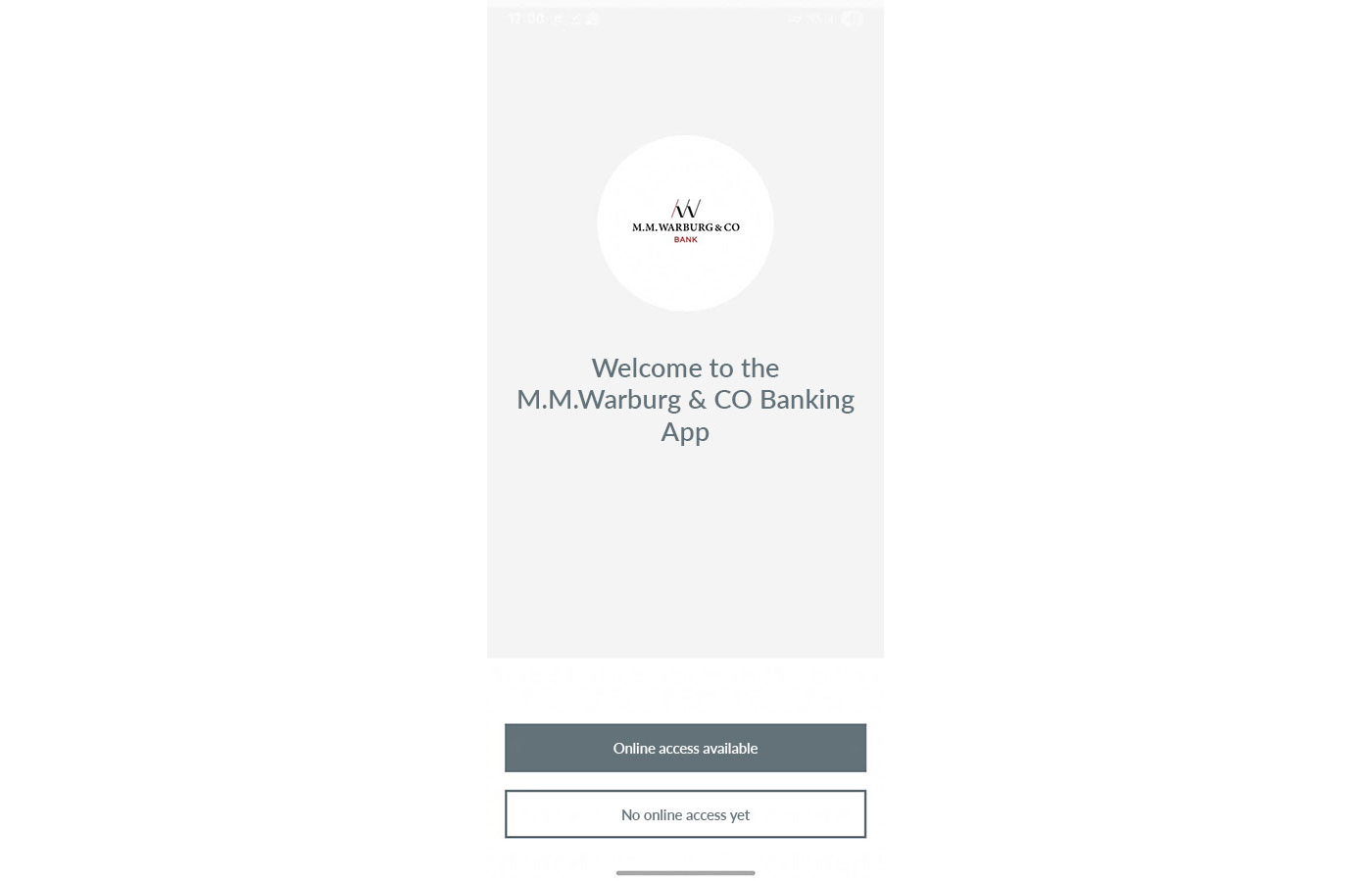
Please download our new Warburg Banking app. Open the app and select “Existing online access”. This requires that you have already logged in to the new online banking system. Follow the instructions and you will be ready to go in no time.
Step 2: Set a password
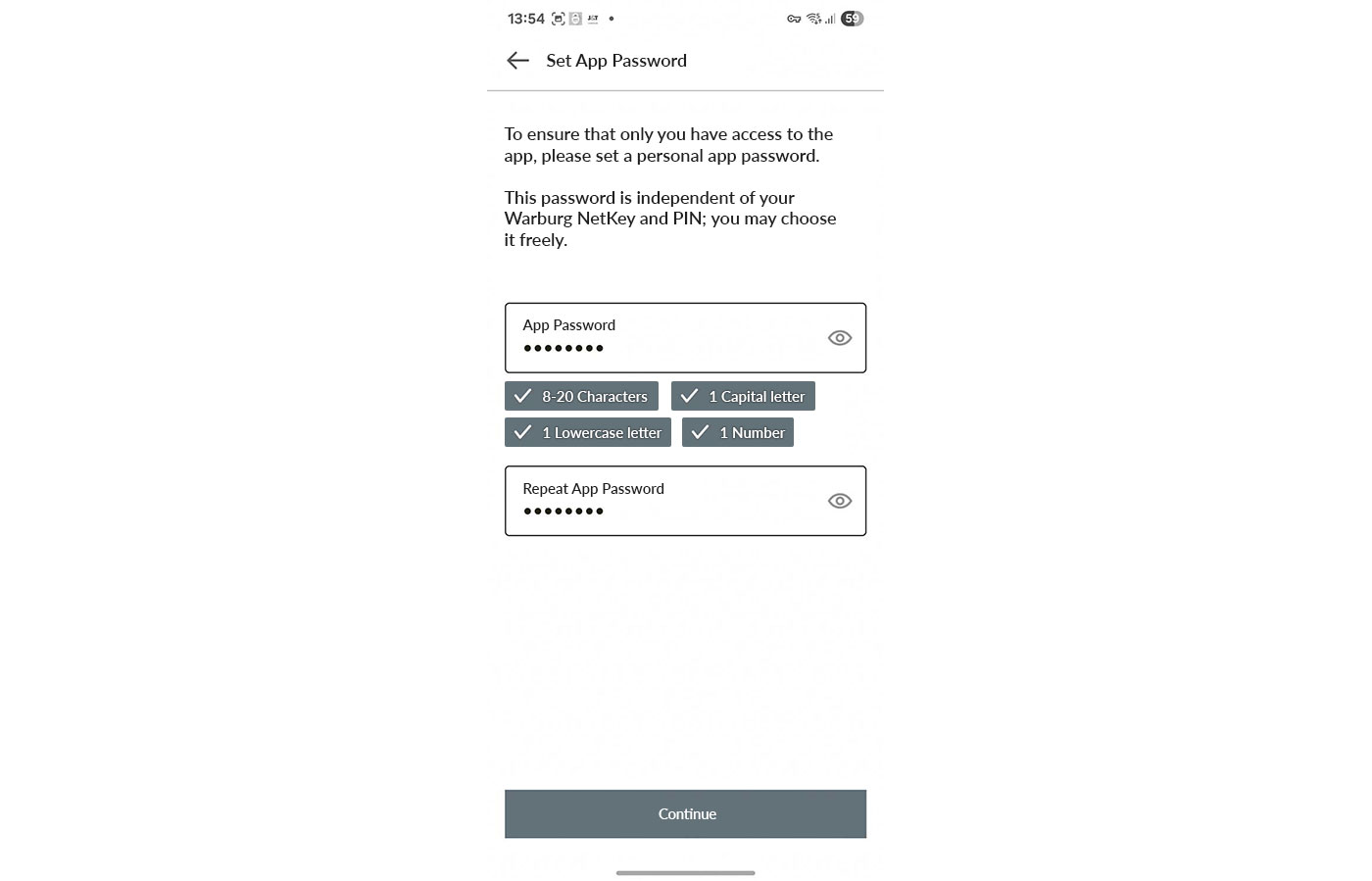
First, set an app password – the required security standards will be checked and displayed directly, including the minimum number of characters. Select, whether you would like to use the biometric features of your device (e.g. fingerprint) to log in.
Step 3: Confirm
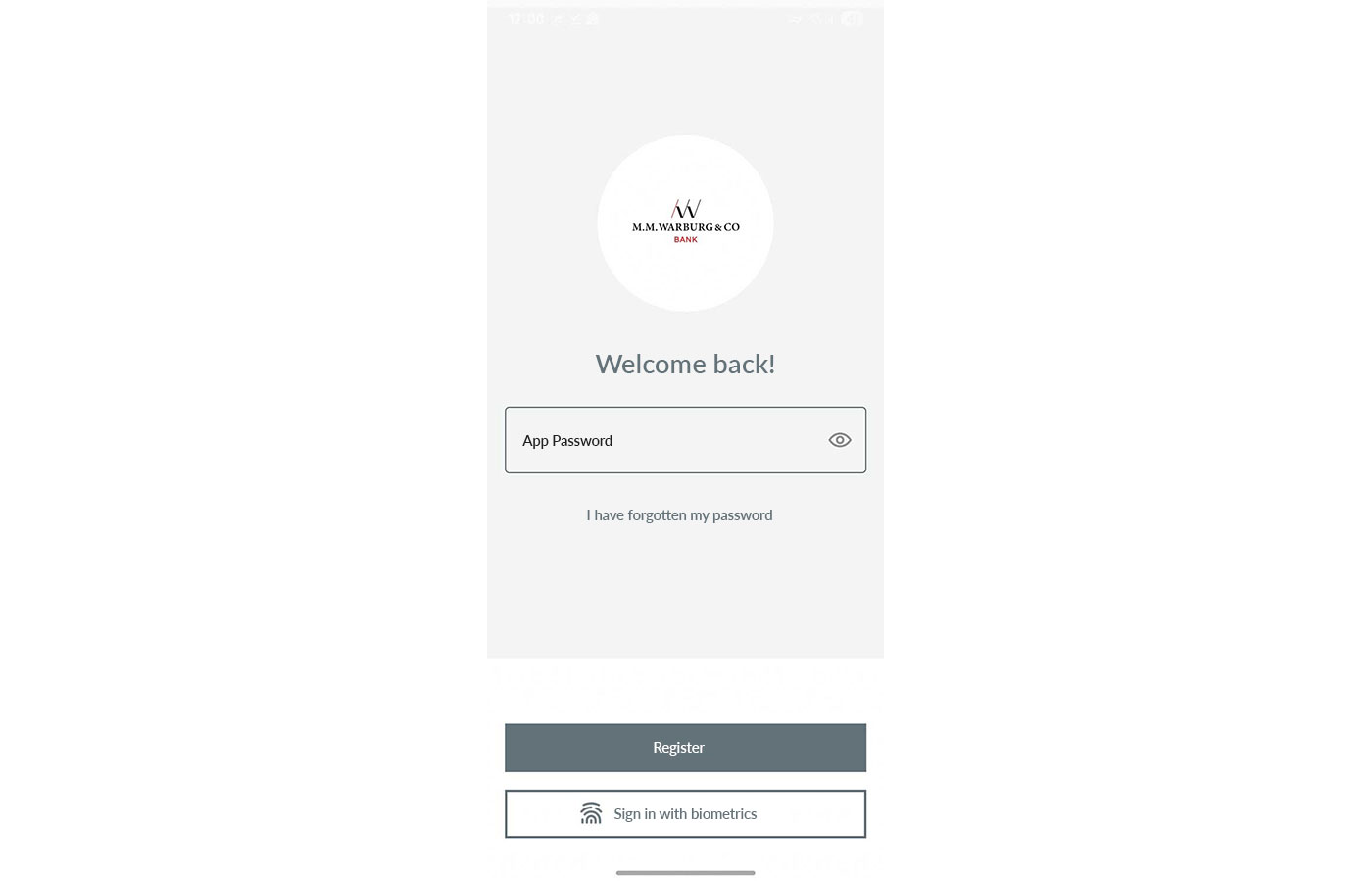
Enter your Warburg NetKey and your online PIN to log in. Select “Log in”. Authorise the login using the SecureGo plus app. Your accounts are now integrated. The account overview shows all your accounts at a glance – and gives you access to key functions via the menu. You will also be asked whether the app may send you notifications.

For the legitimation and authorization of your orders, we offer two TAN procedures and the electronic signature (HBCI with signature):

TAN-Generator

With this procedure, you determine the six digits transaction number (TAN) by TAN-generator, made available by us.

Instructions TAN-Generator (PDF) 

SecureMessaging (pushTAN)

Download the M.M.Warburg SecureMessaging App from your app store and authorize transactions easily using your mobile device.

Instructions pushTAN (PDF)

HBCI with Electronic Signature

By using HBCI with electronic signature your orders will be authorized by a generated and password-protected electronic signature. For this, you will need financial software installed on your computer and an external storage medium.

Of course, you may use all of the various procedures.

Use our cash management/EBICS service for corporate customers to process your payment transactions.

Learn more about the advantages